
Last reviewed: 2026-08-30. The software and published packages may have changed since this review. Check the current releases and compatibility notes before using this guide with important data.
Navigation instructions and synthetic screenshots reflect the reviewed source implementation; published packages may differ.
The desktop Calendar workspace uses the available window for calendar sources, month or week navigation, event lists, and collapsible event details. At narrower window widths, secondary panels open as dialogs so the calendar grid retains usable space. Linux and Windows share the same CalDAV behavior here; this guide does not apply to the unsupported authenticated macOS target.
Step 1 Navigate month, week, and agenda views
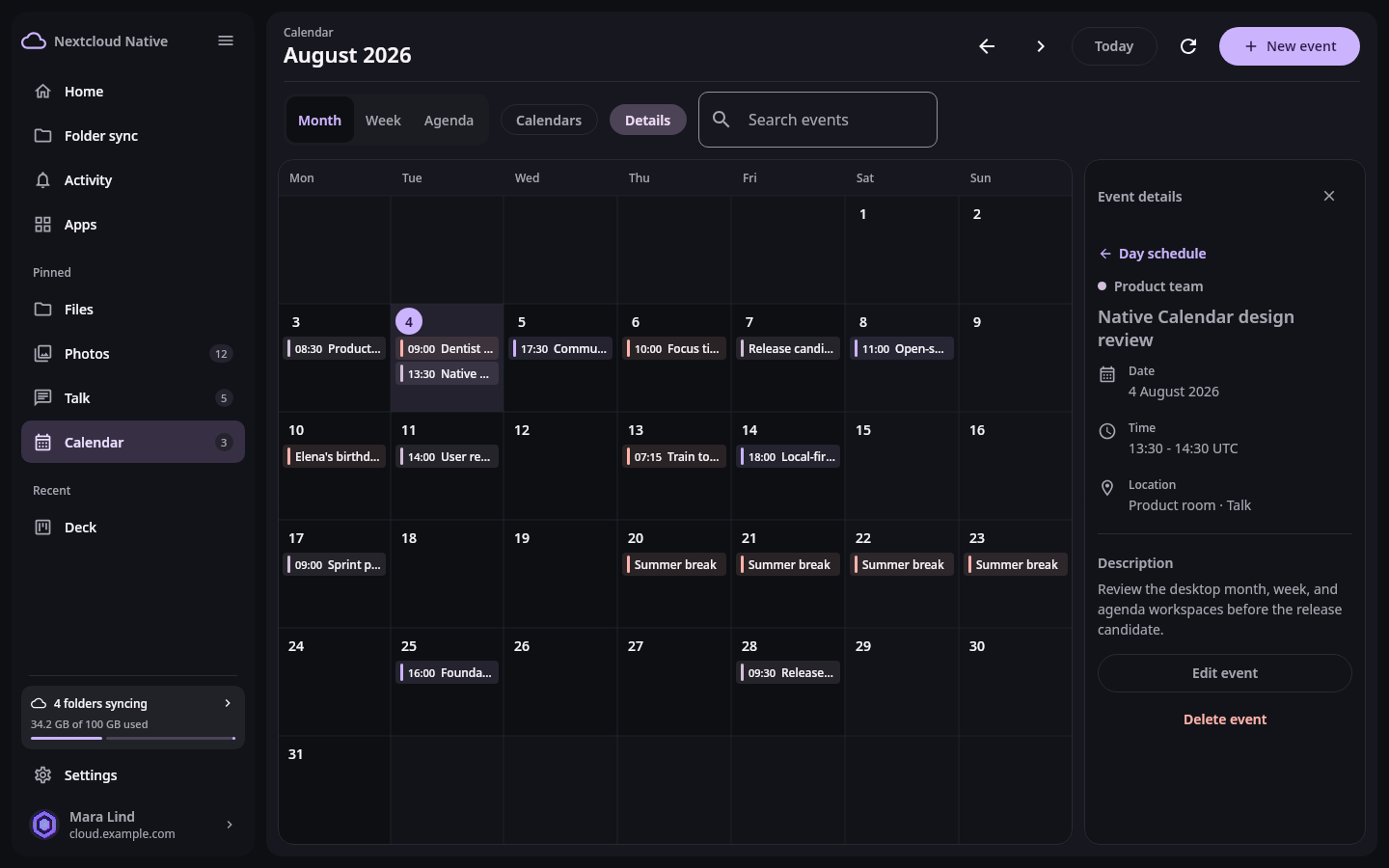
The desktop Calendar workspace keeps the calendar grid visible, with optional source and event-detail panels. Synthetic data in real Compose UI Next: Filter sources and inspect event authorityOpen Calendar from the sidebar or Apps. Choose month, week, or agenda according to the task. Previous and next move through the active range, while Today returns to the current date. Use search to narrow the events already loaded for the view.
The month view uses a continuous grid. When a day contains more events than fit, choose more to open its complete schedule. Week columns scroll independently so busy days do not hide later events. Multi-day events appear on every covered date; an all-day event's end date is exclusive. Agenda uses the same time-first event rows as the phone.
Choose Calendars to show or hide sources and Details to show or hide the inspector. Selecting an event opens its details without discarding the surrounding schedule. The workspace retains the last matching result while a range refreshes. If the refresh message reports a failure, the visible events may be stale; retry before changing a time-sensitive event.
Step 2 Filter sources and inspect event authority
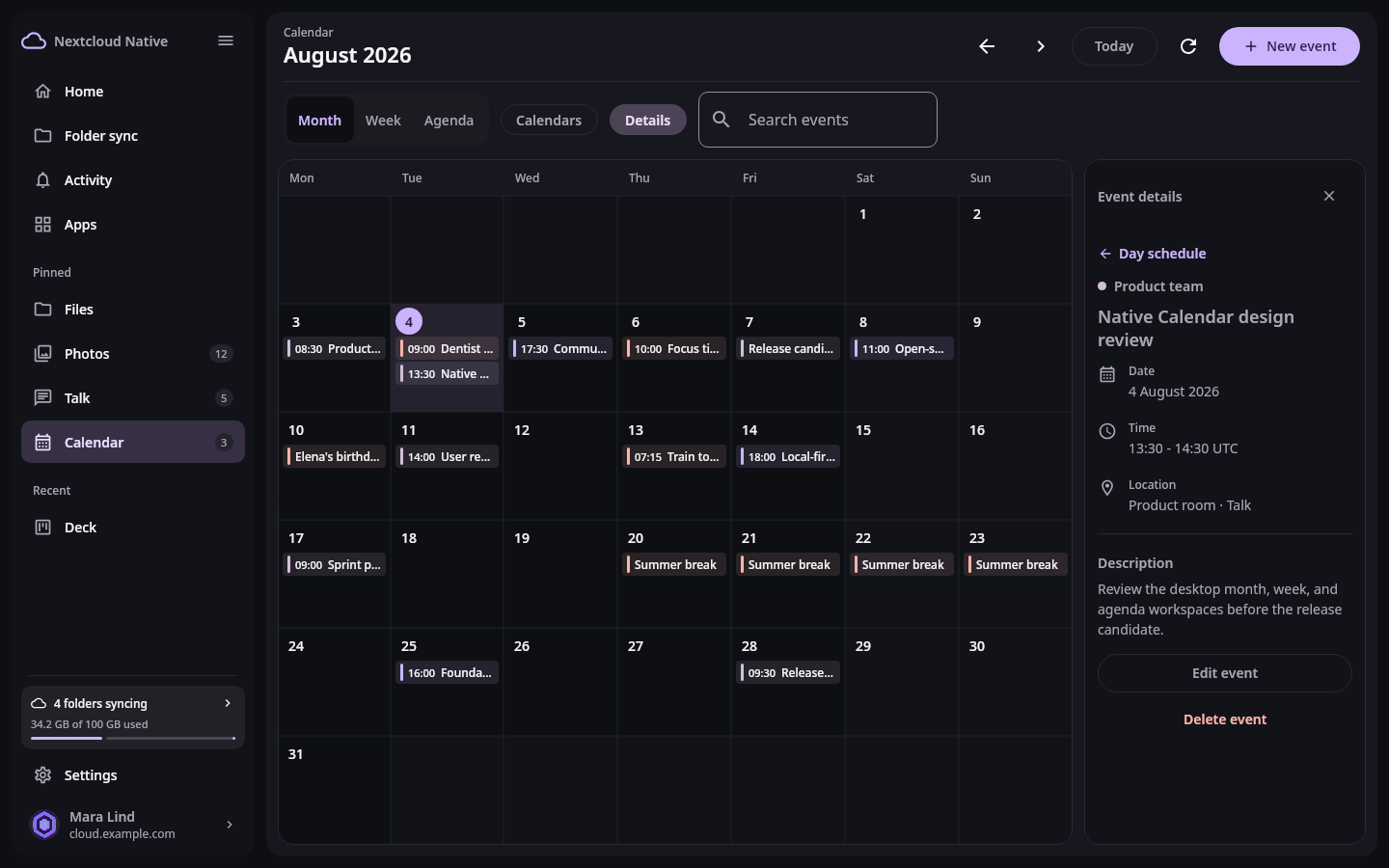
Source controls hide or show calendars without deleting them and disclose which collections can accept a new or changed event. Synthetic data in real Compose UI Next: Create, update, or delete with conflict protectionChoose Calendars, then use the named checkboxes to hide or show a calendar. Visibility is a local workspace choice and does not delete the CalDAV collection. Read-only sources remain useful for planning but cannot accept edits. The create action is enabled only when at least one writable calendar is available.
Select an event to inspect its date, time, location, description, and recurrence. An event must belong to a writable source, carry an ETag, and identify the authoritative object before editing is enabled. Generated recurrence occurrences remain read-only so a single expanded row cannot accidentally overwrite the complete series.
Choose Day schedule in the inspector to return to the other events on that date. Panel close buttons hide the panel without changing the selected event or calendar visibility.
Step 3 Create, update, or delete with conflict protection
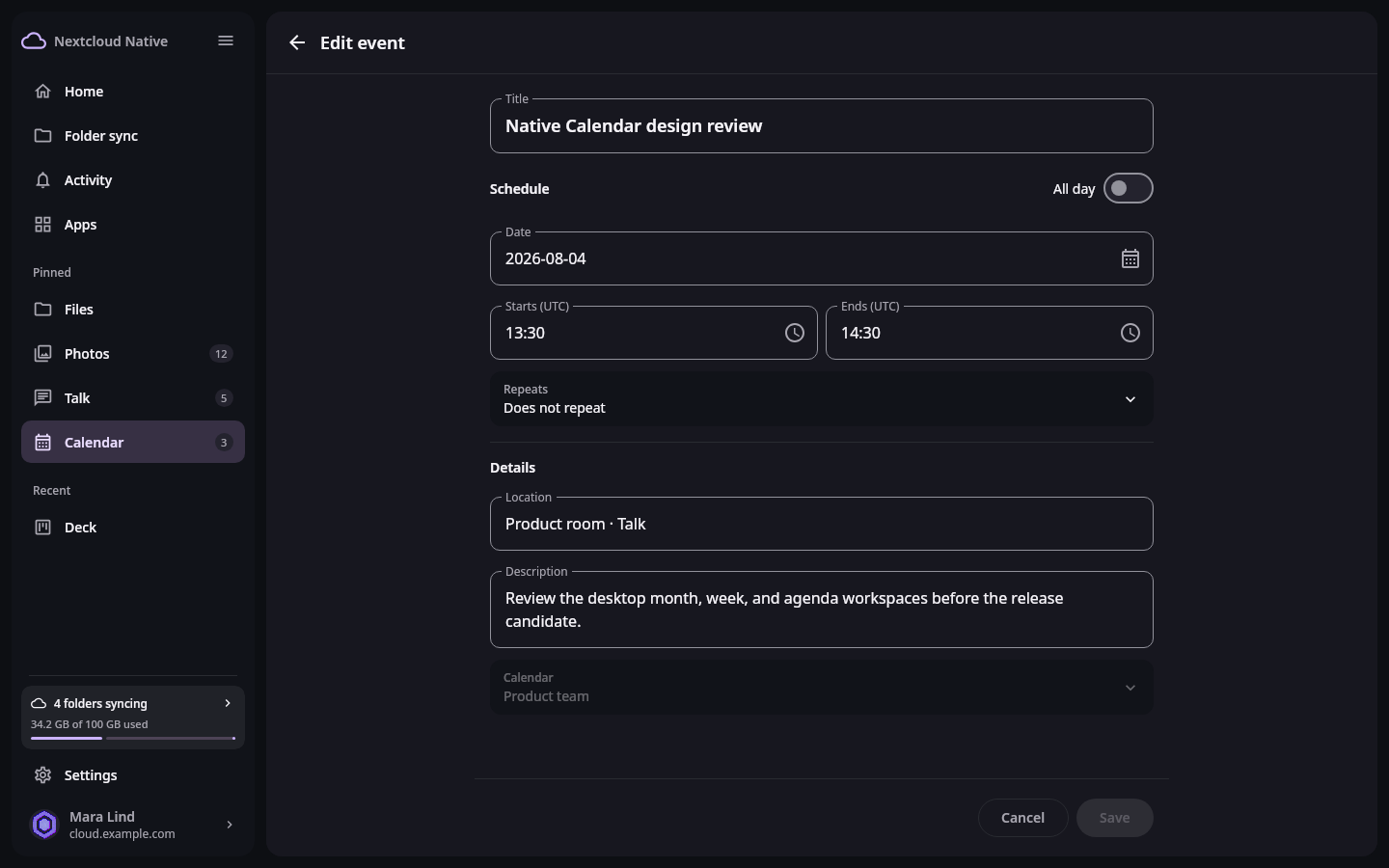
The desktop editor gathers a complete CalDAV event and keeps calendar selection and recurrence consequences visible before submission. Synthetic data in real Compose UI Choose New event, complete the title and schedule, then add times or select All day. Calendar and clock buttons open date and time pickers; typing remains available. Timed editor fields use UTC, matching the saved event values. Use Repeats for recurrence, add location and description, and pick the correct writable calendar. Save once and wait for the refreshed view rather than submitting a duplicate after an uncertain network result.
Edits and deletes use the current ETag. If the server rejects a stale version, refresh and compare before trying again. For a recurring event, Edit series changes the complete authoritative series and Delete series permanently removes it; an individual generated occurrence is intentionally not editable in the current implementation.
Choose Edit or Edit series in the event details to edit within the workspace. The shared form stays at a readable width while the desktop shell remains available. Back returns to the calendar and asks before discarding a changed draft. Creating an event and choosing dates or times still use dialogs.
The phone and desktop editor share validation, recurrence and calendar selectors, and date/time fields. Save and Cancel remain outside the scrolling form. Edit series states that changes apply to the complete recurring series. These controls do not enable editing a generated occurrence.